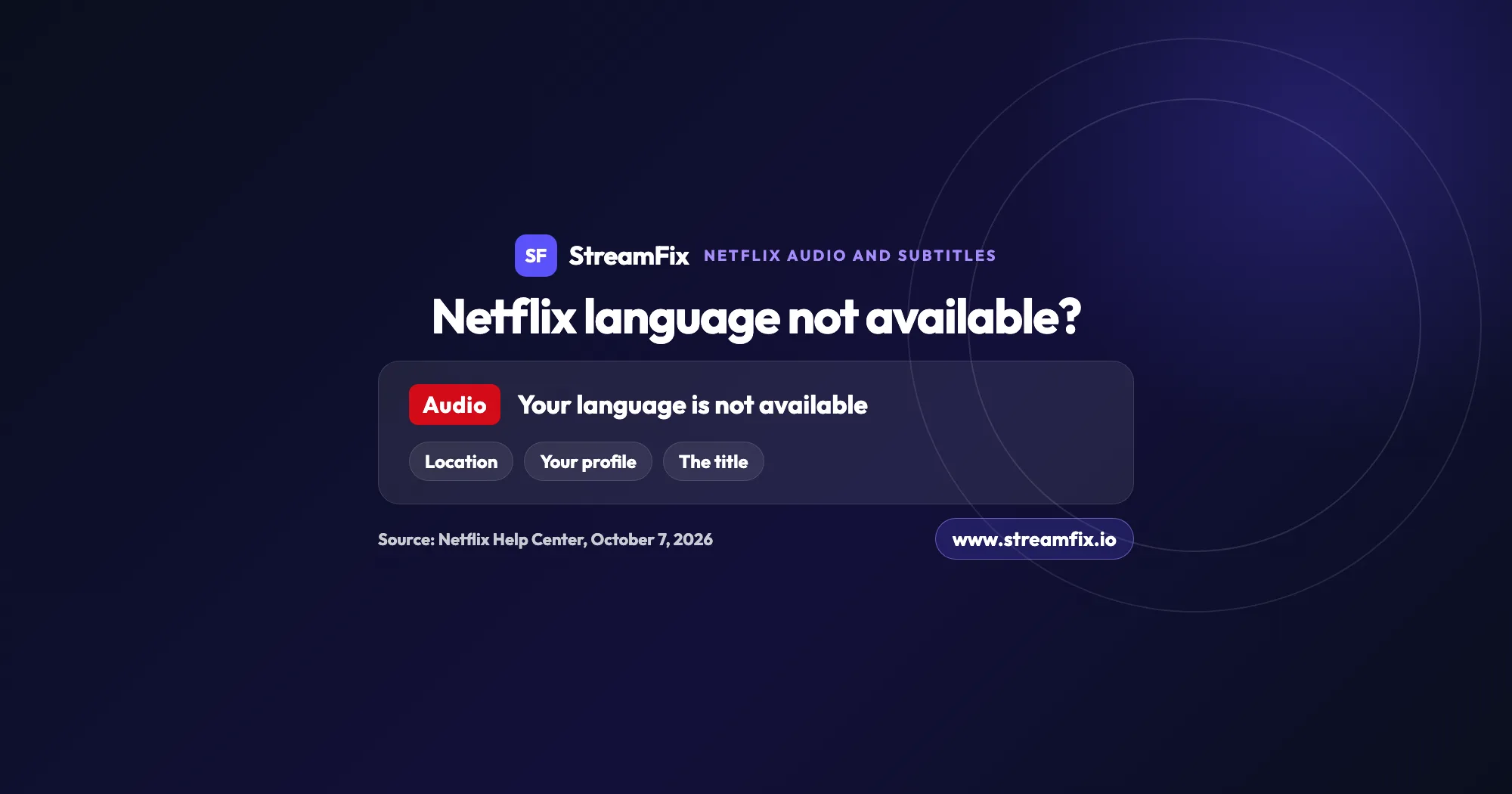
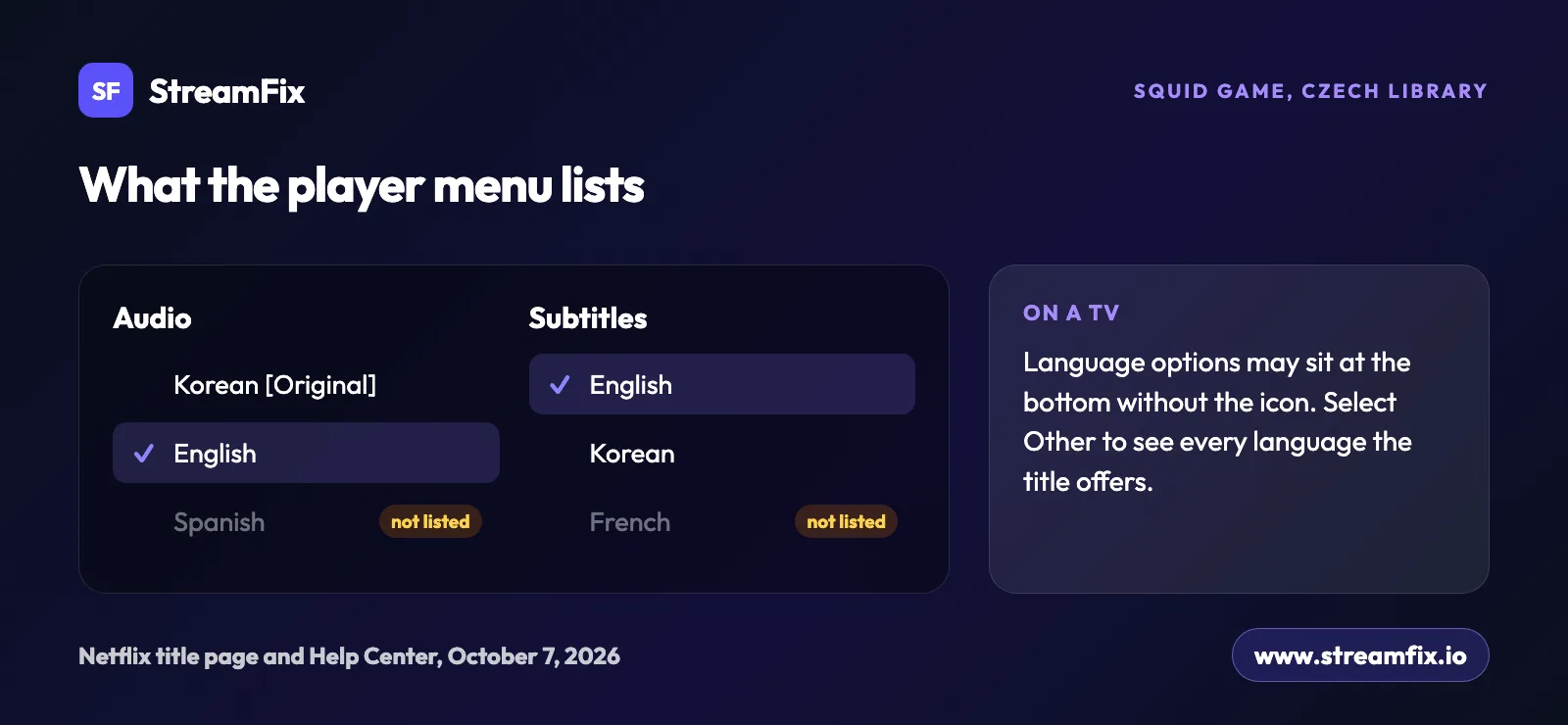
English is rarely the problem on Netflix. The gaps show up in other languages: the Spanish dub your kids grew up with, or English audio on a show made in Korean or French. When you see “Netflix language not available” abroad, Netflix traces it to where you stream, how your profile is set up, the title itself or your device. Take Club de Cuervos. According to Netflix title pages in the Czech library on October 7, 2026, it comes with English subtitles but only its original Latin American Spanish audio. Squid Game, in the same library, lists no Spanish or French audio at all.
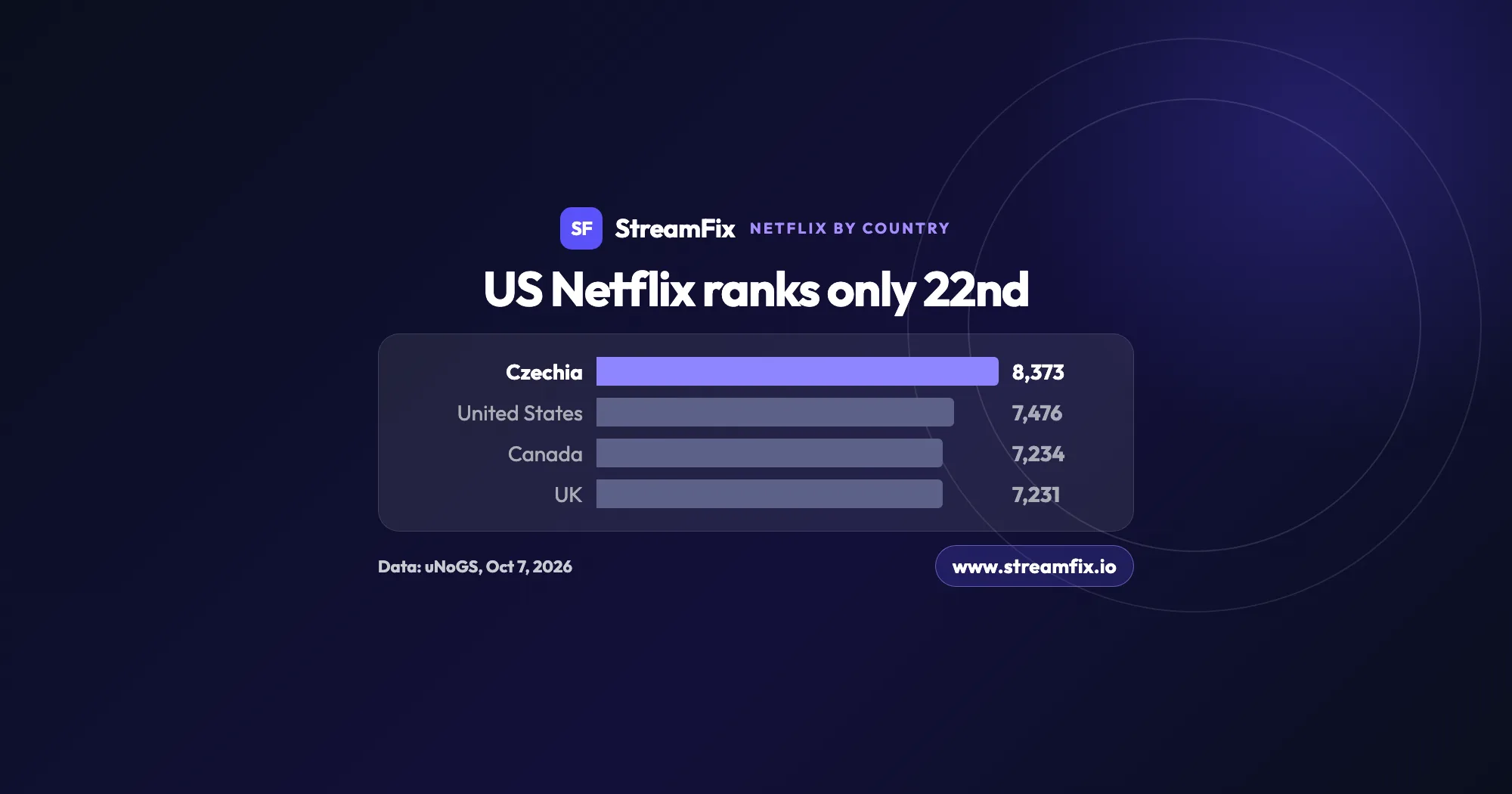
Here are the four causes Netflix names, a sample of what one country’s library really offers, the fix for travelers who want their home library back, and the settings that make your audio choice stick. If the whole catalog looks different too, our ranking of the Netflix library by country shows how much it changes from one market to the next.
Netflix language not available: the four reasons
The Netflix Help Center gives four reasons why subtitles or audio may be missing in a language: your location, your profile language preferences, the movie or show you picked, and the device you watch on. It adds that languages can be missing on specific titles because of content licensing and show agreements. Licensed titles may only be available in certain countries or for a limited time.
Netflix title pages list audio and subtitles without a login, so you can check a title before you press play. This is what a sample showed in the Czech library on October 7, 2026, with English in focus:
Title | Original | English audio | English subtitles |
|---|
Squid Game | Korean | Yes | Yes |
Money Heist | Spanish (Spain) | Yes | Yes |
Lupin | French | Yes | Yes |
The Decline | French (Canada) | Yes | Yes |
Club de Cuervos | Spanish (Latin America) | No | Yes |
Source: Netflix title pages in the Czech library, October 7, 2026 |
English is covered on almost every row. Other languages are the narrow part. In the Czech library, the audio lists pair the original with a selection from Czech, German, English, Polish and Ukrainian, and Netflix treats Spanish (Spain), Spanish (Latin America), French and French (Canada) as separate languages. These pages show the Czech library only, so they say nothing about the same titles in other countries.
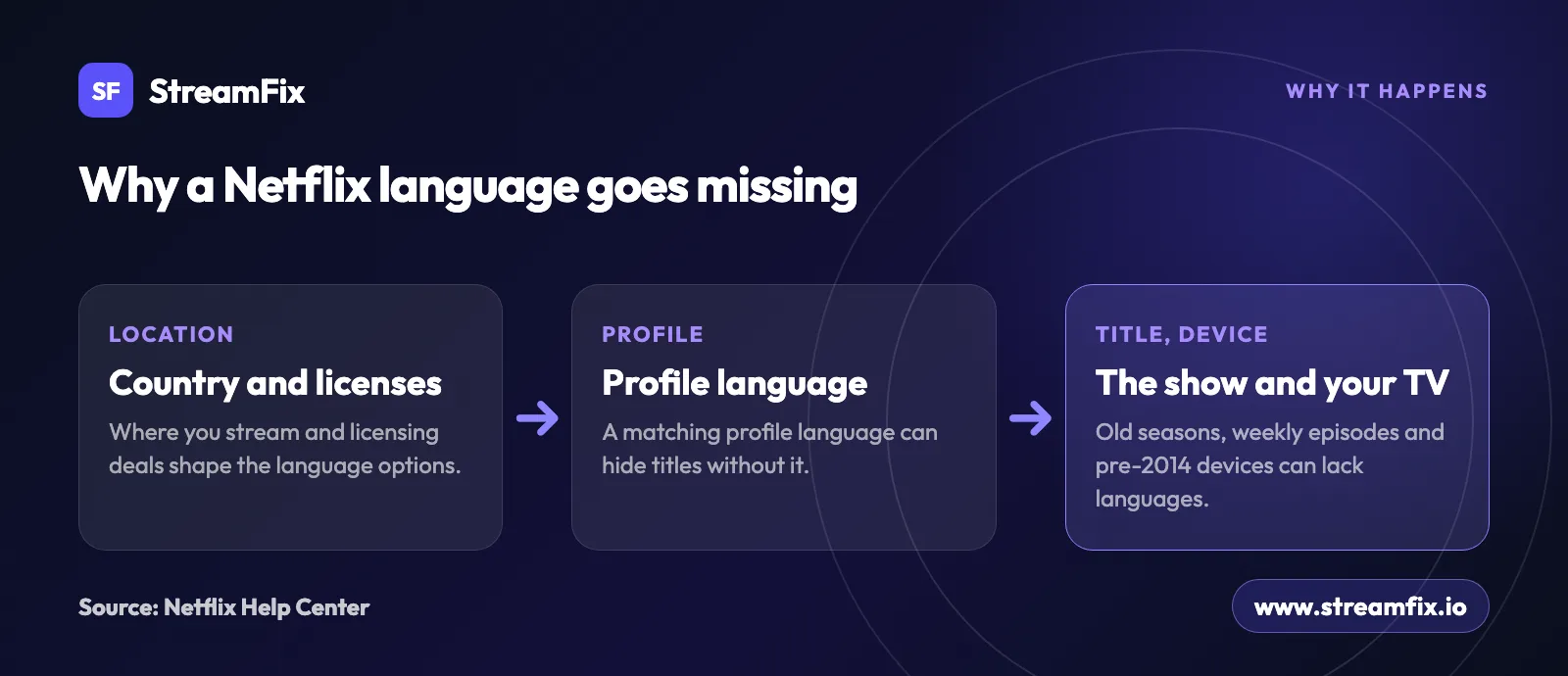
Your profile language can hide titles
In some countries Netflix filters the catalog by profile language. If your profile language matches one listed for your country, you only see shows and movies with audio or subtitles in that language. The list includes the Czech Republic and Slovakia (Czech, English), Germany and Austria (German), Switzerland (German, French, Italian), Belgium (German, French, Dutch), France (French) and Spain (Spanish). The US version of the same help page names Canada (English), Greenland (Danish) and Puerto Rico (English, Spanish).
For expats this filter is easy to miss. An English profile in Prague or Toronto quietly hides every title without English audio or subtitles. To see all titles in your region, Netflix says to choose a profile language other than the ones listed for that country. A bilingual household can keep one profile in English and a second one in a language that is not on the list, which shows the full catalog.
Older seasons, weekly episodes and older devices
Languages can change from season to season, because some shows source subtitles and audio separately for each one. For seasons Netflix offered before 2018, some languages may not be available. Licensed shows released weekly, following the original broadcast, get their subtitle and audio options once they are completed, so a new episode may launch with fewer languages than it will have later.
Hardware plays a part too. On devices made before 2014, the Netflix app may not support subtitles in Arabic, Chinese, Hebrew, Hindi, Japanese, Korean, Thai, Romanian or Vietnamese, while most newer devices do. If your TV shows fewer languages than your phone, install all available app updates or try a different device.
English subtitles on non-English titles
On shows made in other languages, English is the safety net. In the sample above, every title had English subtitles, and all of them except Club de Cuervos also had English audio. When a show offers only its original audio track, subtitles are the way in.
Two details cause confusion. Netflix can display subtitles even with subtitles turned off, when a show includes dialogue in a language other than its original one, so a few lines on screen are not a glitch. And to find titles with English audio, Netflix suggests searching for a phrase such as “English Dubbed Movies & TV.” If English subtitles never show up on a title, check whether you are playing a download and whether your app is up to date.
Netflix abroad with your home languages via VPN
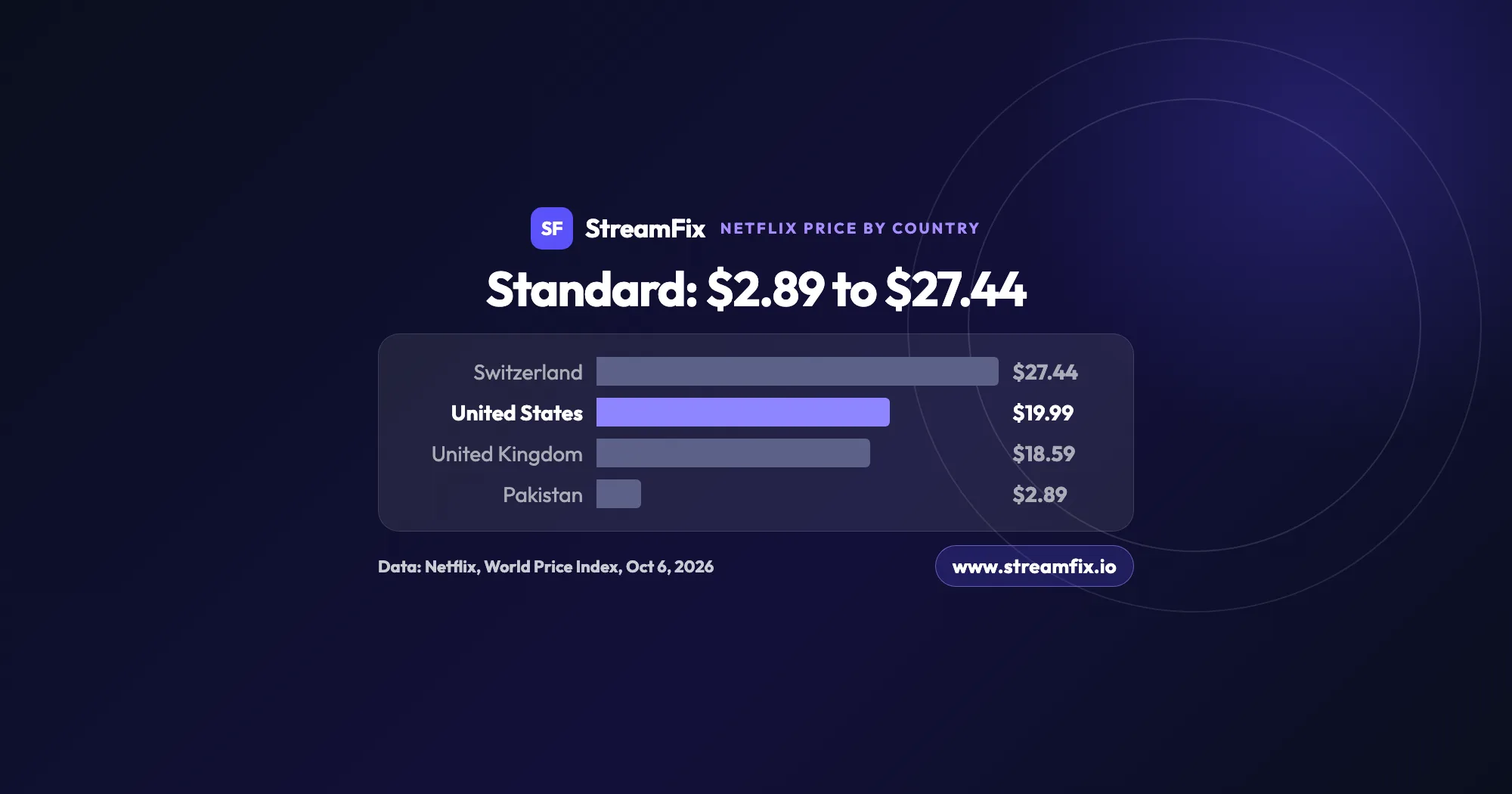
Inside the European Union, Netflix says it provides the same content as your home country for a limited time. Outside the EU, you get the library of the country you are in, with the language options that come with it. A VPN changes your virtual location to your home country, such as the US or the UK, so Netflix shows you your home library with the audio and subtitles you are used to. On hotel and public Wi-Fi, it also encrypts your connection. You still pay for your own Netflix plan, and the VPN does not change the price. For what plans cost in each market, see our list of Netflix prices by country.
According to the Netflix Help Center, when Netflix detects a VPN it can limit you to titles available in all regions. That is why the choice of VPN matters. The table shows which services work with Netflix according to StreamFix data, and our testing methodology explains how StreamFix checks them. Tip: pair the VPN with a Netflix plan without ads.
How to change the audio language on Netflix and keep it
During playback
Start a title. At the top or bottom of the screen, select Audio & Subtitles and pick from the languages shown. On TVs the options may appear at the bottom without the icon. Select Other to see every language option for that title. To set defaults for everything you watch, use your profile settings instead.
In your profile settings
In a browser, open your Account page, select Profiles, choose a profile and select Languages. Pick the Audio and subtitle languages you want, then select Save. In the mobile app, tap My Netflix, tap the profile name at the top, then Manage Profiles, choose the profile and tap Audio & Subtitles. The new languages save automatically.
Display Language is a separate setting that controls menus, not audio. If a device keeps showing the old language, sign out and sign back in. One catch for families: audio and subtitle preferences are not saved for most Kids titles played from an adult profile. They are saved on a Kids profile. If you have to reset the audio every time, Netflix suggests playing a title rated Teens or above for two to three minutes to set your preferred language.
Downloads keep only two languages
For downloaded titles, Netflix shows the two most relevant languages. The same limit applies when you are back on Wi-Fi and stream a title you have also downloaded. Need a third language for a visiting grandparent or a child learning Spanish? Delete the download, then choose the subtitles or audio again.
English rarely goes missing on Netflix. Almost every other language can, once you leave home. Check the profile filter and the player menu first. If the gap comes from the library of the country you are in, a VPN from the table set to your home country shows you your home library again.