Surfshark on Smart TV and Firestick: Fire TV, Samsung, LG, Apple TV
Surfshark runs natively on Fire TV, Android TV, Google TV and Apple TV. Samsung, LG and Roku have no app, but a router, a Windows hotspot or an HDMI stick fills the gap. Smart DNS ended on February 2, 2026.
Marketa HorackovaSpeed & Performance Tester 9 min read Affiliate linksSome links are affiliate links. We may earn a commission at no extra cost to you, and it never affects our ratings.
Surfshark has a native app for Fire TV (Fire OS 7.0+), Android TV and Google TV (Android 7.0+) and Apple TV (tvOS 17+).
Samsung (Tizen), LG (webOS) and Roku have no app: use a router, a Windows hotspot or a stick in the HDMI port.
Smart DNS ended on February 2, 2026. If it’s still set on your TV, switch DNS back to automatic.
One account covers unlimited devices, with a 30-day money-back guarantee.
Will Surfshark run on your TV? With Surfshark on smart TV and Firestick, it comes down to the operating system inside, and every TV lands in one of three groups.
Fire TV, Android TV, Google TV and Apple TV get a native app. Samsung, LG and Roku don’t.
And Smart DNS, the old shortcut for those TVs, ended on February 2, 2026. If your TV suddenly lost its internet connection, that’s likely why.
The Fire TV and Fire TV Stick app needs Fire OS 7.0 or later.
On the home screen, go to Find, then Search.
Type Surfshark and select Surfshark VPN from the results.
Select Get or Download and wait for the install to finish.
Open the app and log in. Scan the QR code with a phone where you’re already signed in, enter a login code, or type your email and password.
Press Fastest for the quickest recommended location, or search for a country. Two letters are enough, like US or IT.
Wait for the green Connected status, then open your streaming app.
Pick the location to match the service. Surfshark’s own advice: for a US service, use a US server.
That’s the idea of a VPN on a TV: it changes your virtual location. Abroad, you connect to a server back home and watch your usual services as you do at home. Your subscriptions stay yours to pay, since a VPN doesn’t make them cheaper or free.
Vega OS is Amazon’s new Linux-based system. For now it runs on the Fire TV Stick 4K Select (2025), and according to Surfshark, Amazon plans to bring it to more devices.
Surfshark already has an app for it, but a leaner one. You get the core VPN features, and the only protocol is WireGuard, with no option to switch.
If a service won’t load on Vega OS, clear the app’s cache to wipe old location data, then try another server.
If the app doesn’t show up in search
On a Fire OS device, you can sideload the app instead. Go to Settings, My Fire TV, Developer options and turn on Apps from Unknown Sources. Then install the Downloader app and use the APK link from the Surfshark Help Center.
Don’t see Developer options? Open About and press the device name about seven times.
Android TV, Google TV and Android TV boxes
Android TV, Google TV and Android boxes need Android 7.0 or later. The app comes straight from Google Play.
Open Google Play on your TV and search for Surfshark.
Select Install and open the app.
Sign in with Continue with Google, a QR code or a login code from your phone.
Choose a location and connect.
On Android 6.0, Surfshark offers an APK instead of the Google Play version.
One quirk: on Android TV running Android 9 or 12, the app doesn’t support a wired Ethernet connection. Use Wi-Fi on those models.
Nvidia Shield and other TV boxes
Any Android TV box on Android 7.0 or later follows the same steps. The Nvidia Shield has its own guide in the Surfshark Help Center.
Every plan covers unlimited devices at once, so the box, your Fire TV Stick and your phone all share one account.
The Apple TV app needs tvOS 17 or later and installs from the App Store.
Open the App Store on your Apple TV, search for Surfshark and download the app.
Press Log in or Continue with Apple, or sign in with a QR code or a code from your phone.
Pick a location. Mark your favorites with the star so they’re one click away.
On the first connection, select Allow to add the VPN configuration.
If the connection acts up, open the Apple TV settings, go to Network, then Connection Details, and select Delete VPN. Then connect again from the app. For other connection problems, see what to do when Surfshark isn’t working.
Sign in with a QR code instead of a password
Typing a password with a remote is nobody’s favorite job. The Fire TV, Android TV and Apple TV apps show a QR code instead: scan it with a phone where you’re logged in, and the TV signs in.
Camera not handy? Open the Surfshark app on your phone, go to Settings, My account, Enter login code, and type the code shown on your TV.
Is there a Surfshark app for Samsung or LG TV?
No. Samsung TVs run Tizen and LG TVs run webOS, and neither has a native Surfshark app. Roku doesn’t have one either.
Both brands still have three routes that work.
Samsung
Surfshark’s own recommendation for a Samsung TV is a VPN on your router. Every device on that Wi-Fi, the TV included, then goes through the VPN.
No compatible router? Share the VPN from a Windows laptop as a hotspot and connect the TV to it.
The simplest fix is a Fire TV Stick or an Android TV box in the HDMI port, with the app on the stick.
LG
LG works the same way: router, Windows hotspot or a stick in the HDMI port.
If your LG still has the old Smart DNS address, remove it first. The steps are in the next section.
Surfshark Smart DNS: discontinued on February 2, 2026
Surfshark Smart DNS has not been supported since February 2, 2026. There’s no way to switch it back on.
The reason, in Surfshark’s words: demand for the feature was very limited. The resources went into VPN speed, security and features.
Smart DNS worked by replacing the TV’s automatic DNS with a manual address. If that address is still set, your Samsung or LG won’t connect to the internet.
How to remove Smart DNS from your TV
On a Samsung TV:
Open Settings and select General.
Go to Network Status and select IP settings.
Scroll down to DNS settings and select Get automatically.
On an LG TV:
Open Settings, then All settings, then Network.
Select your connected network, Wi-Fi or wired.
Select Advanced Wi-Fi Settings, or Edit on some models.
Open the DNS server field and select Set automatically.
No automatic option? Delete the old address and type a DNS server by hand. Surfshark recommends its public DNS, 194.169.169.169, which is free and works without a subscription. It’s a regular DNS server, though: it doesn’t change your location, so it’s no stand-in for Smart DNS when you stream.
What to do if your TV has no VPN app
Surfshark offers three routes for Samsung, LG, Roku and older TVs.
Router
A VPN on the router covers every device at home, including TVs and consoles that can’t run a VPN app.
Surfshark lists the trade-offs itself: most app features are missing, management is less convenient, and speed can drop. The router needs an OpenVPN or WireGuard client.
Most routers from internet providers can’t do it on default firmware, and DD-WRT is the usual way around that. Our guide to a VPN on a router for every TV and console walks you through it.
Windows hotspot
In the Surfshark app on Windows, set the protocol to OpenVPN (UDP).
Turn on Mobile hotspot in Windows.
In the properties of the Surfshark (DCO) adapter, allow sharing with the hotspot adapter.
Connect the VPN, then join the hotspot Wi-Fi from your TV.
Handy for a hotel room, as long as your Windows laptop comes along.
A streaming stick or box in the HDMI port
This is the easiest route. Plug a Fire TV Stick or an Android TV box into the TV, install the app, and you’re set without touching the router.
The trade-off: you need to buy the device, and the VPN covers only that stick. Our tip: for most Samsung and LG owners, it’s still the fastest way to get started.
Older Chromecast models, AirPlay and most screen mirroring have no built-in VPN support. A wired HDMI cable from your laptop keeps the VPN active.
Not sure where to start? The stick is the quickest setup, and the router covers the most devices.
Speed is rarely the bottleneck. According to StreamFix data, Surfshark reaches 921 Mbps on a local server and 733 Mbps on a distant one. Netflix recommends 15 Mbps for 4K.
That’s plenty of headroom for 4K on several TVs at once, and the account has no device limit. Our rundown of Surfshark features and streaming settings shows which switches to flip before movie night.
Streaming scores 9.3 out of 10 in StreamFix data. According to our review, BBC iPlayer and ITVX worked even in the Fire TV app. The streaming results in the review list the services by name.
Fire TV, Android TV and Apple TV get the app in a few minutes. Samsung, LG and Roku need a router, a Windows hotspot or a stick in the HDMI port. Either way, one account covers every TV, stick, phone and laptop in your home, and the 30-day money-back guarantee gives you time to check it on your own setup.
You can’t install it on the TV itself: Samsung TVs run Tizen, and there’s no native Surfshark app for them. Set up the VPN on your router, share it from a Windows laptop as a hotspot, or plug a Fire TV Stick or Android TV box into the HDMI port and install the app there.
On the home screen, go to Find, then Search, type Surfshark and select Get or Download. The app needs Fire OS 7.0 or later. Log in with the QR code, press Fastest and wait for the green Connected status.
No. Surfshark discontinued Smart DNS on February 2, 2026, because demand was very limited. If the old address is still set on your TV, switch DNS back to automatic, or the TV won’t connect to the internet.
Not through an app, because LG’s webOS has none. Use a VPN on your router, a hotspot from a Windows laptop, or a Fire TV Stick or Android TV box in the HDMI port. New to this? Here’s what a VPN for streaming does.
Yes. The app needs tvOS 17 or later and installs from the App Store. Sign in with Continue with Apple or a QR code, and select Allow on the first connection.
Not natively. Roku doesn’t support native VPN apps, so Surfshark recommends a VPN on your router. A Fire TV Stick or Android TV box with the app is the simpler alternative.
Yes. Starter, One and One+ all allow unlimited devices at the same time, so every TV, stick and phone in your home can share one account. For how that compares, see ExpressVPN vs Surfshark.
First check that the device runs Fire OS 7.0 or later, then pick a server in the same country as the service and try another one if it fails. On a Fire TV Stick 4K Select with Vega OS, clear the app’s cache to remove old location data and reconnect.
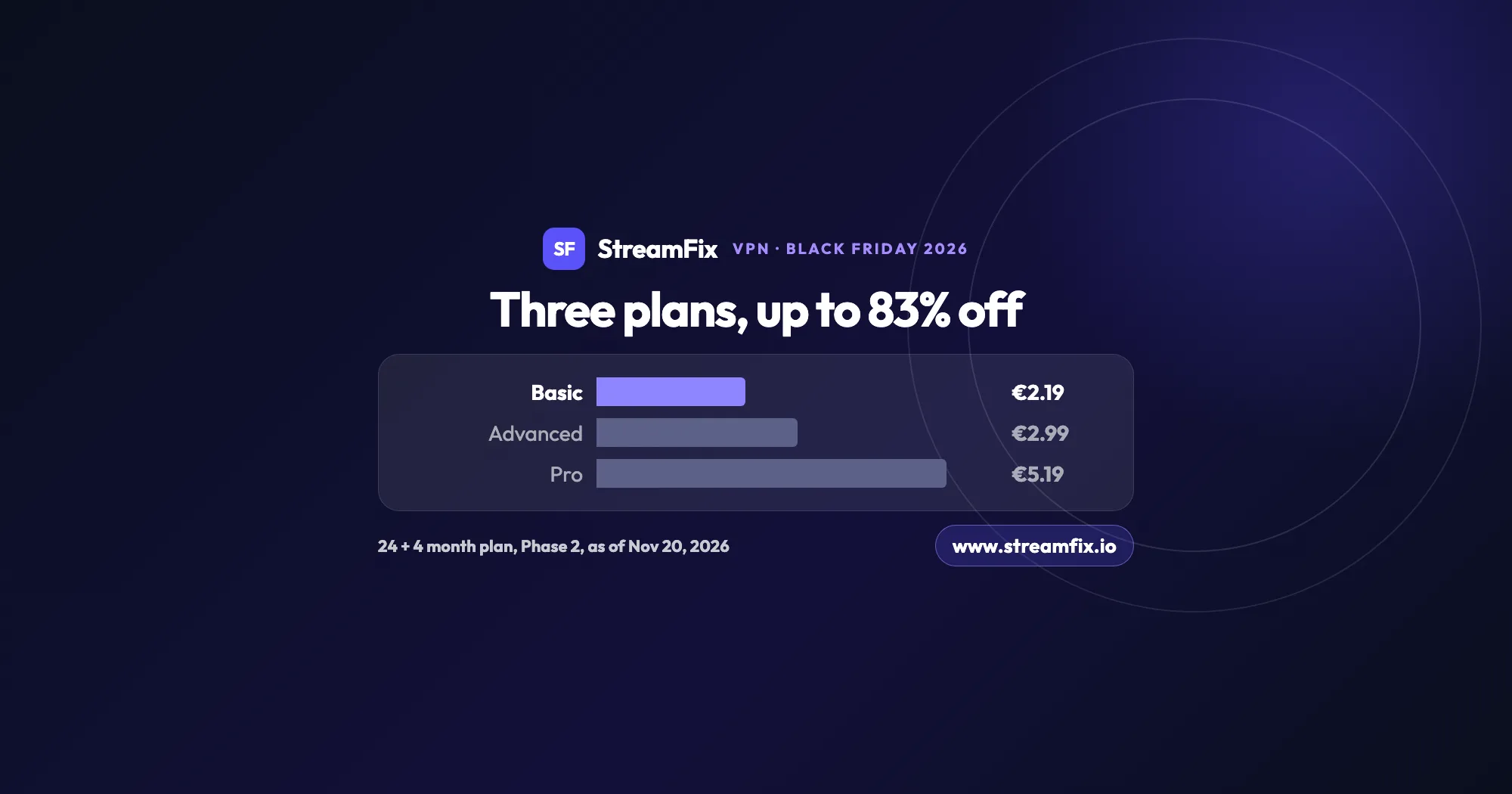
The ExpressVPN Black Friday deal runs in two phases, and on Black Friday itself Basic costs €2.19 a month, 83% off. All three plans share the same VPN, so the choice comes down to devices and extras.
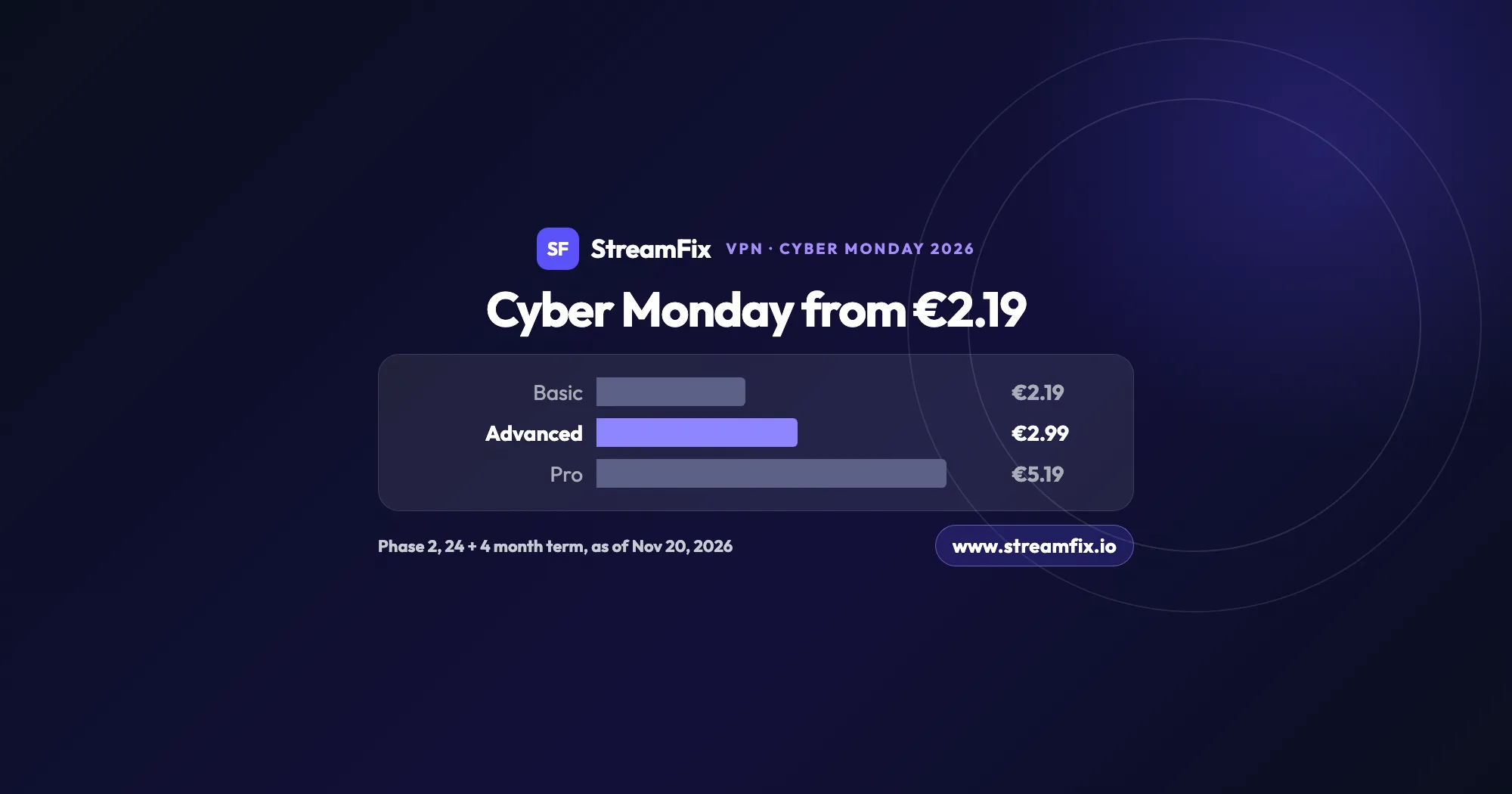
On Cyber Monday, November 30, 2026, Phase 2 of the ExpressVPN Black Friday sale applies: Basic €2.19, Advanced €2.99 and Pro €5.19 a month on the 24 + 4 month term. One subscription covers 10, 12 or 14 devices.
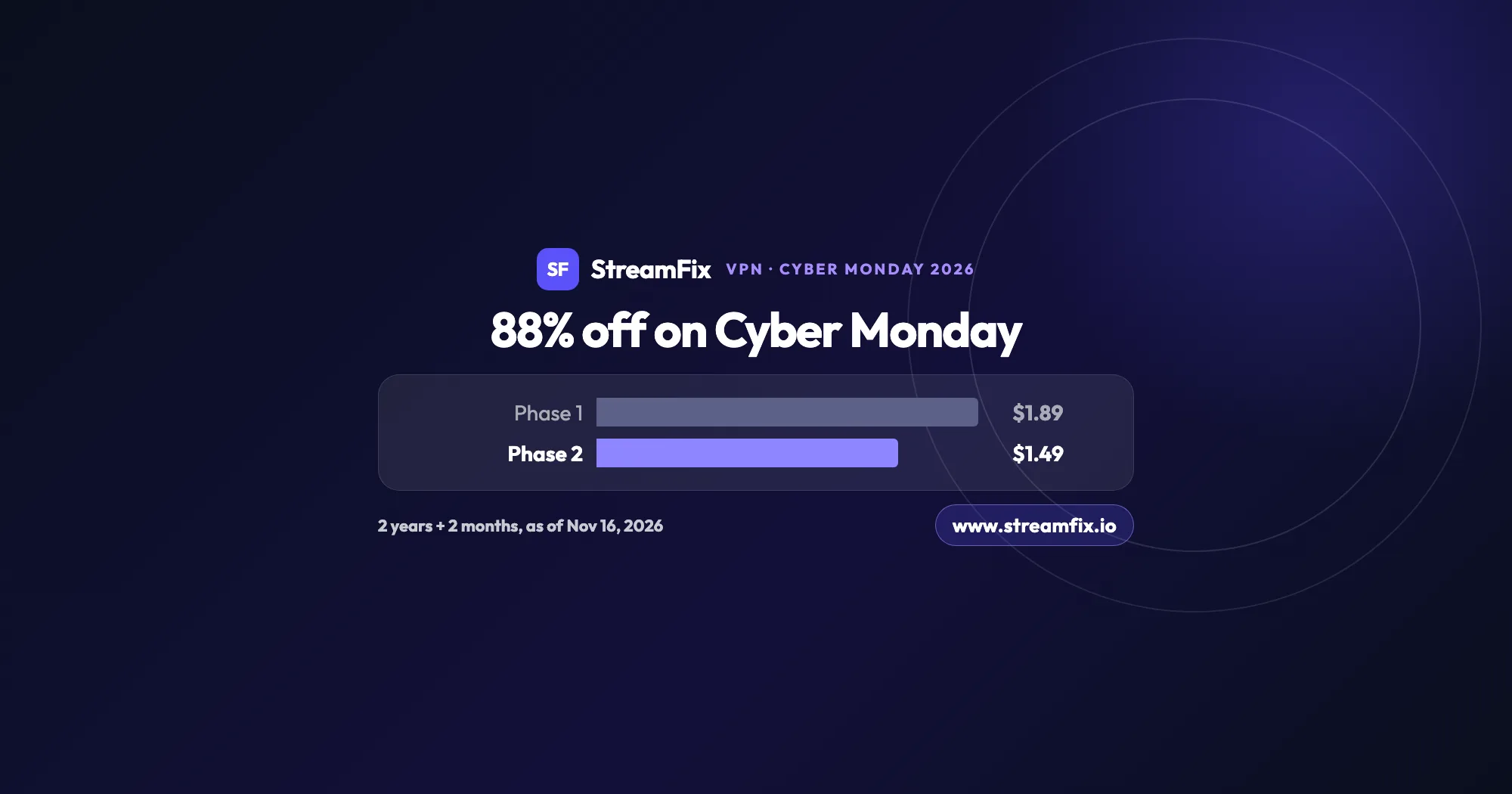
On Cyber Monday, November 30, 2026, Private Internet Access (PIA) costs $1.49 a month, 88% off, on the 2-year plan with 2 extra months. Phase 2 of the sale runs from November 25 to December 2, and one plan covers unlimited devices for your whole household.