Surfshark Features: CleanWeb, MultiHop, Bypasser and the Best Settings for Streaming
Every Surfshark plan, Starter included, comes with CleanWeb, Bypasser, MultiHop, Rotating IP and Alternative ID on unlimited devices. Here’s what each feature does, where to switch it on and the six settings that work best for streaming.
Radek VlcekDevice & App Tester 10 min read Affiliate linksSome links are affiliate links. We may earn a commission at no extra cost to you, and it never affects our ratings.
All three plans, Surfshark Starter included, come with CleanWeb, Bypasser, MultiHop, Rotating IP and Alternative ID, on an unlimited number of devices.
Most switches are in Settings, VPN settings; MultiHop has its own tab and Rotating IP sits under Advanced settings.
For streaming: WireGuard and CleanWeb on, MultiHop and Rotating IP off, and Bypasser for apps that should skip the VPN.
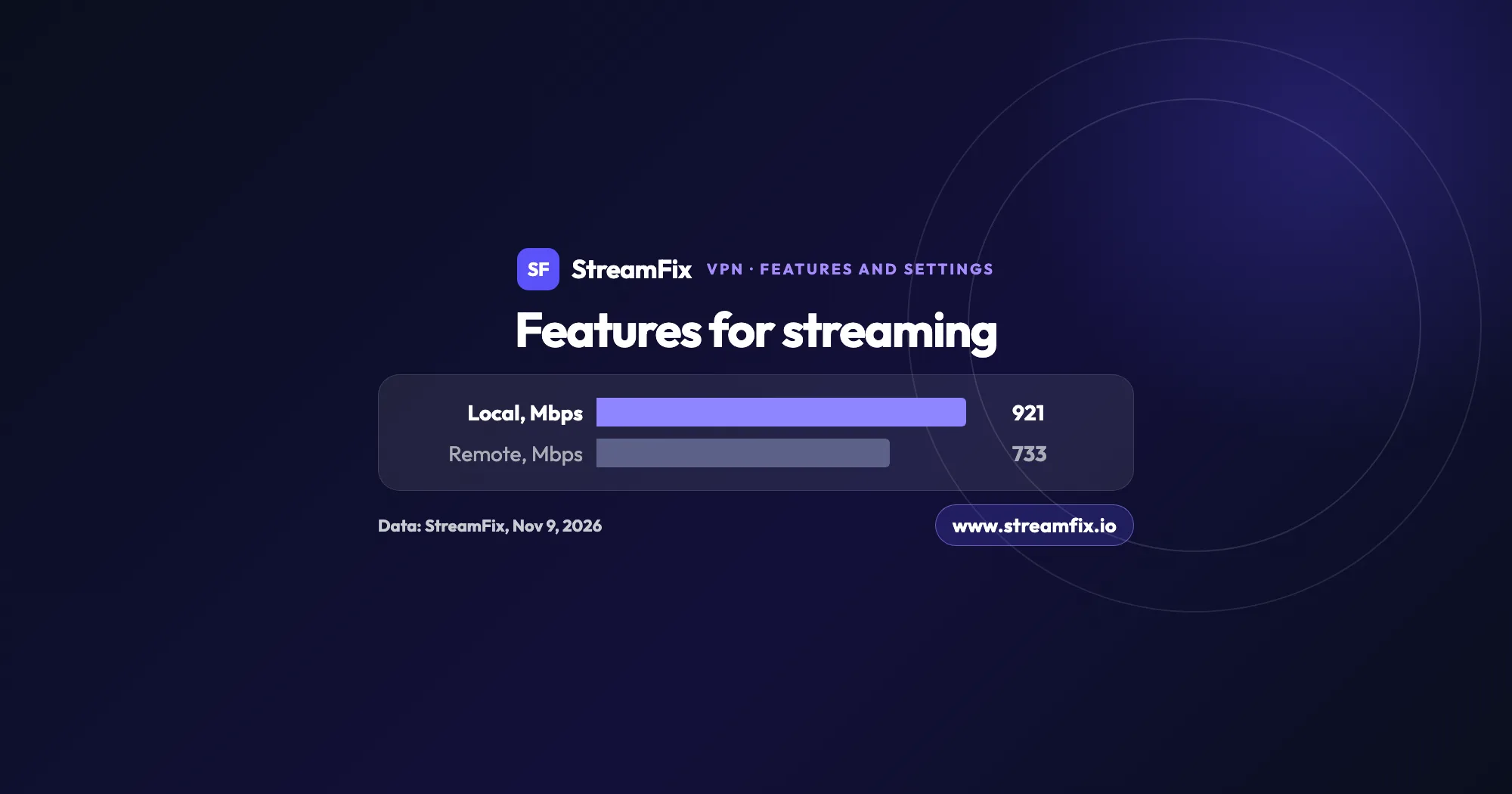
According to StreamFix data, Surfshark reached 921 Mbps on a local server and worked with 29 of 32 tracked platforms.
Surfshark launched in 2018 as a VPN service, and four years later, after its merger with Nord Security, it was a unicorn valued at $1.6 billion. Today the app does far more than hide your IP address.
Here’s the short answer on Surfshark features: CleanWeb, Bypasser, MultiHop, Rotating IP and Alternative ID come with all three plans, Surfshark Starter included, and every plan covers an unlimited number of devices. For streaming, a few switches do the job: WireGuard as the protocol, CleanWeb on, Bypasser if you need it, and MultiHop and Rotating IP off. The overall rating and speed results are in our Surfshark review; this page covers what each feature does and where to find it.
What features does Surfshark have?
The table shows what each feature does for streaming, where its switch is and which devices get it.
Feature
For streaming
Where to find
Platforms
CleanWeb
Fewer ads
VPN settings
Win, Mac, Android, iOS, TV
Bypasser
Only chosen apps
VPN settings
Win, Mac, Android, iOS
MultiHop
Turn off
MultiHop tab
Win, Mac, Android, iOS
Rotating IP
Turn off
Advanced settings
Win, Mac, Android, iOS
Alternative ID
Private sign-ups
Web account
Web, extension
Devices
Unlimited
Log in with code
All
Source: Surfshark help center and checkout, November 9, 2026
Every row in that table comes with all three plans: Surfshark Starter, Surfshark One and Surfshark One+. Our comparison of Surfshark plans and prices lays out what each plan costs. The bigger plans add other products rather than extra VPN features (Surfshark One brings Antivirus, Alert, Search and protection against scam texts and emails, and Surfshark One+ adds Incogni on top).
Most switches live in one place: open Settings, then VPN settings. MultiHop has its own tab, and Alternative ID is managed in your account on the web.
CleanWeb: fewer ads, even on your TV
CleanWeb is the built-in ad blocker. In the app, it blocks ads, trackers, malware and phishing sites, and it works only while you’re connected to the VPN. It’s in the Android, iOS, macOS and Windows apps, and the Android TV app lists it in its settings as “Ad blocker.” According to Surfshark, CleanWeb also blocks ads on Android TV (Fire TV included) and Apple TV once you install the app and switch it on. It’s worth switching on if you set up a VPN on a smart TV.
Open the app and go to Settings.
Tap VPN settings.
Flip the CleanWeb toggle. Green means it’s on.
Connect to a server. The steps are the same on every device.
The browser extension for Chrome, Firefox and Edge has its own CleanWeb, and that one works even when the VPN isn’t connected. It’s on by default and blocks ads, trackers, cookie pop-ups and malware; Surfshark’s help center adds that it also blocks video ads on popular streaming platforms. Surfshark advises against connecting the extension and the app at the same time, so if you want both, exclude your browser in the app with Bypasser.
Bypasser: only the apps that need the VPN
Bypasser is Surfshark’s version of split tunneling: part of your traffic goes through the VPN, the rest uses your regular connection. Bypass VPN lets the apps and websites you pick skip the VPN, while Route via VPN sends only your picks through it. You get Bypasser on Windows, macOS, Android, iOS and in the browser extension, and the Android TV app has both modes. Route via VPN is available on Android and Android TV, and on Windows for apps.
Open Settings, then VPN settings.
Tap Bypasser and choose Bypass VPN or Route via VPN.
Add the apps or websites for that list.
Reconnect to the VPN so the change takes effect.
On iPhone and iPad, Bypasser works with websites, and you can add a site straight from Safari through the Surfshark extension. Surfshark says Bypasser works great with mobile banking apps and recommends it for data-heavy tasks like video streaming and gaming. For streaming, keep only the app of the service you watch from abroad on the VPN, and leave banking and local apps on your normal connection.
MultiHop sends your traffic through two VPN servers instead of one, which is why it’s also known as double VPN (at checkout it appears as Dynamic MultiHop). You can take one of the preset pairs or build your own with Create Connection, choosing both the entry and the exit server. Custom pairs run on Nexus.
To use it, open the MultiHop tab in the app’s top navigation, pick a pair or create one, and connect. It’s available on Windows, macOS, Android and iOS.
For streaming, Surfshark itself suggests skipping MultiHop, because routing traffic through two servers can lower your speed. A movie needs one fast server, so on movie night I’d leave MultiHop off and save it for moments when privacy matters more than speed. The security section of our Surfshark review shows how it fits with the rest.
Rotating IP: a fresh address every few minutes
Rotating IP (formerly IP Rotator) changes your IP address automatically about every 5 minutes within the location you chose, without disconnecting you, and your traffic stays encrypted. It runs on Nexus. To turn it on, go to Settings, VPN settings, Advanced settings and flip the Rotating IP toggle. On macOS you can also set the range: City, Country, Region or Worldwide. It works on Windows, macOS, Android and iOS, though not together with Static IP, Dedicated IP or MultiHop servers.
Surfshark positions Rotating IP for general browsing, avoiding tracking and comparing prices. For streaming and other services that flag frequent IP changes, it points you to a static IP instead. So keep Rotating IP off while you watch. A regular connection holds the same IP until you reconnect, and if a service still reacts to changing addresses, a Static IP location gives you the same IP every time, shared with the other users connected to it (on Android, iOS, macOS and Windows).
Alternative ID: sign up without your real email
Alternative ID generates a new online identity, with a name, date of birth and address, plus an email address that forwards messages to your real inbox, verification and 2FA emails included. You set it up in your account on the web at my.surfshark.com/alternative-id, and the browser extension for Chrome, Firefox or Edge can fill in forms with it automatically. It comes with every plan at no extra cost.
For streaming, it’s handy when you register for a free trial or a newsletter and would rather keep your main address out of it. Confirmation links still reach you.
Unlimited devices: one account for the whole household
Surfshark Starter, Surfshark One and Surfshark One+ all let you connect an unlimited number of devices at once; the one exception is Antivirus. Surfshark says extra devices don’t reduce speed, and there are no data caps. Apps cover Windows, macOS, Linux, Android, iOS, Apple TV, Fire TV, Android TV and routers, with extensions for Chrome, Firefox and Edge. For a console or a TV without an app, a VPN on a router protects everything on your home network.
Typing a password with a TV remote is nobody’s favorite chore, so use Log in with code instead. In the app where you’re already signed in, go to Settings, Account, Log in with code, then enter the code on the new device within 5 minutes. Our Surfshark guide for smart TVs and Firestick walks through the TV sign-in step by step.
There’s no separate family plan, and you don’t need one: a single account can be shared across your household, and each device picks its own server.
Nexus: the network behind the features
Nexus is Surfshark’s own software-defined networking technology. It links the servers into one network, so your traffic travels across a network of servers instead of a single tunnel. Rotating IP, custom MultiHop pairs and FastTrack are all built on it.
There’s no switch for Nexus; it runs in the background.
Best Surfshark settings for streaming
Six settings cover almost every streaming setup.
Protocol: pick WireGuard or Automatic. Surfshark’s help center for iOS and Android TV describes WireGuard as faster for streaming and browsing.
CleanWeb: turn it on in VPN settings for fewer ads and trackers while you’re connected.
Server: connect to the country of the service you want to watch, using your own subscription. Traveling? A server back home lets you watch your services as usual.
MultiHop: leave it off. One server is plenty for a movie.
Rotating IP: leave it off too. If a service dislikes IP changes, choose a Static IP location. Seeing an error code on Netflix? Our explainer on the Netflix proxy error (E106) tells you what it means.
Bypasser: send only the streaming app through the VPN with Route via VPN where your device has it, or keep your local apps outside the VPN with Bypass VPN. Keep the kill switch on as well, so your internet cuts out if the VPN connection drops.
According to StreamFix data, Surfshark reached 921 Mbps on a local server and 733 Mbps on a remote one, with 14 ms latency over WireGuard, and it streamed in 4K. The StreamFix review counts 29 of 32 tracked platforms working, Netflix US, UK and Japan among them, measured by the StreamFix methodology. For Netflix in particular, our guide to watching Netflix from anywhere walks through it, and our best VPN for Netflix ranking compares all seven VPNs.
Set it once on each phone, laptop and TV you watch on.
Which protocol should you choose, and what is post-quantum protection?
The apps offer WireGuard, OpenVPN (UDP and TCP) and IKEv2, plus an Automatic option that chooses for you. For streaming, WireGuard is the one to pick, and that’s also how Surfshark describes it in its iOS and Android TV help pages. OpenVPN is where Surfshark runs its obfuscated servers, which comes in handy on networks that restrict VPN traffic.
On top of WireGuard, the apps add post-quantum protection, encryption meant to hold up against future quantum computers. It works in the apps, not with manual configurations. The kill switch, found in Settings, VPN settings, cuts your internet if the VPN drops, on Android, iOS, macOS, Windows and Linux.
Everlink. This patented technology (patents US11190491B1 and US20240080302A1) restores a dropped connection without disconnecting you. It’s on by default with WireGuard on iOS, macOS, Windows, Android and Linux.
Dausos. Surfshark’s own protocol arrived in 2026. Each connection gets its own data tunnel, encryption is AEGIS-256×2 with post-quantum protection, and the protocol has been audited by Cure53. For now it’s a beta, available only in the macOS app from the App Store, and according to Surfshark it’s up to 30% faster than standard protocols.
FastTrack. This route optimization runs on Nexus. It started on servers in Seattle, Vancouver and Sydney, and Surfshark says it now covers most of the network for macOS app users. It’s on by default. For a side by side look, read NordVPN vs Surfshark, and if you’re new to all this, start with what a VPN for streaming does.
Every plan, Surfshark Starter included, gets the full set: CleanWeb, Bypasser, MultiHop, Rotating IP and Alternative ID, on as many devices as you own. Choose WireGuard, turn on CleanWeb, keep MultiHop and Rotating IP off, and your streaming setup is done in a few minutes.
The main Surfshark features are CleanWeb (an ad and tracker blocker), Bypasser (split tunneling), MultiHop (double VPN), Rotating IP, Alternative ID and unlimited devices. Behind the scenes, Nexus links the servers into one network, Everlink restores a dropped connection and FastTrack optimizes routes for speed. Most switches sit in Settings, VPN settings.
Yes. Surfshark Starter, Surfshark One and Surfshark One+ all include the VPN, unlimited devices, CleanWeb, the cookie pop-up blocker, Bypasser, Rotating IP, MultiHop and Alternative ID. Dedicated IP (20 locations, one per account) and Alternative Number (US numbers only) aren’t part of any plan and are sold separately.
Yes, with CleanWeb. In the app it blocks ads, trackers, malware and phishing while the VPN is connected, and on Android TV, Fire TV and Apple TV it works once you install the app and turn it on. The browser extension for Chrome, Firefox and Edge blocks ads and cookie pop-ups even without the VPN.
Yes, it’s called Bypasser. Bypass VPN keeps chosen apps and websites off the VPN, and Route via VPN sends only your picks through it. It works on Windows, macOS, Android, iOS (websites only), Android TV and in the browser extension.
As many as you like, at the same time, on every plan. According to Surfshark, extra devices don’t lower your speed and there are no data caps. To add a TV quickly, use Log in with code on a device that’s already signed in, which also helps when you watch UK TV abroad on a hotel screen.
MultiHop routes your traffic through two VPN servers, either a preset pair or your own entry and exit server via Create Connection. Surfshark itself advises against it for streaming, since two servers can lower your speed. Keep it off for movies and switch it on when privacy matters more than speed.
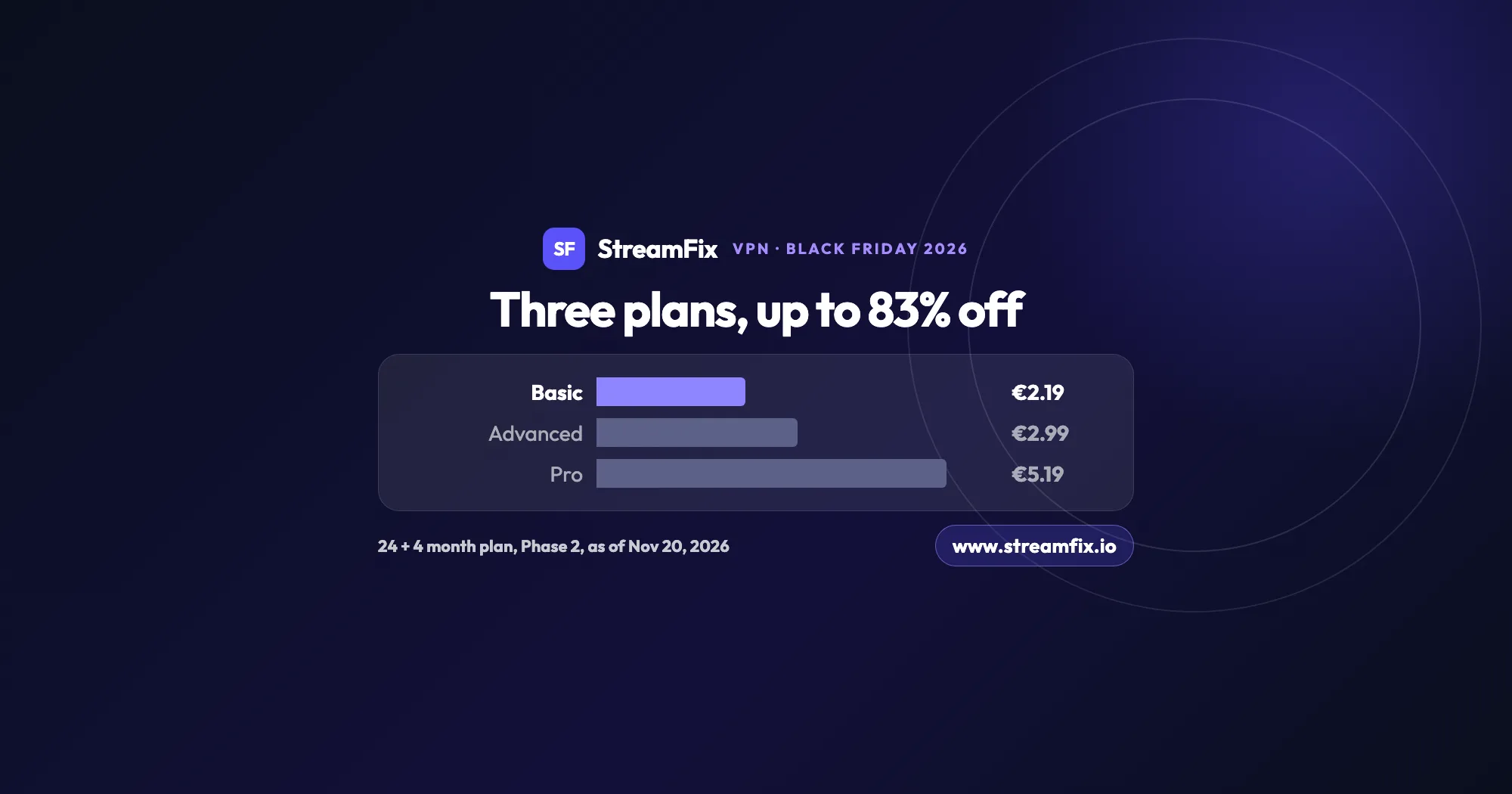
The ExpressVPN Black Friday deal runs in two phases, and on Black Friday itself Basic costs €2.19 a month, 83% off. All three plans share the same VPN, so the choice comes down to devices and extras.
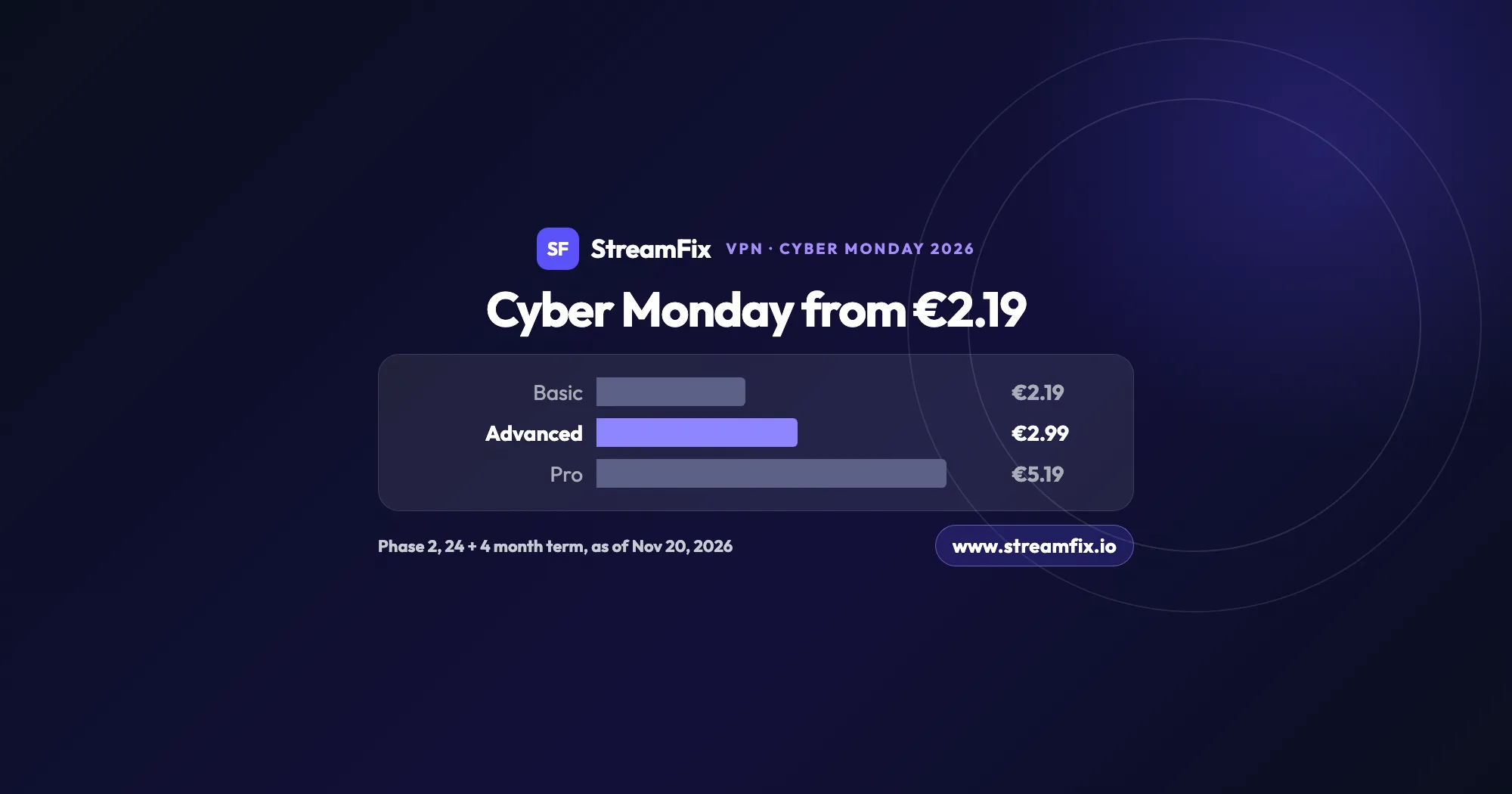
On Cyber Monday, November 30, 2026, Phase 2 of the ExpressVPN Black Friday sale applies: Basic €2.19, Advanced €2.99 and Pro €5.19 a month on the 24 + 4 month term. One subscription covers 10, 12 or 14 devices.
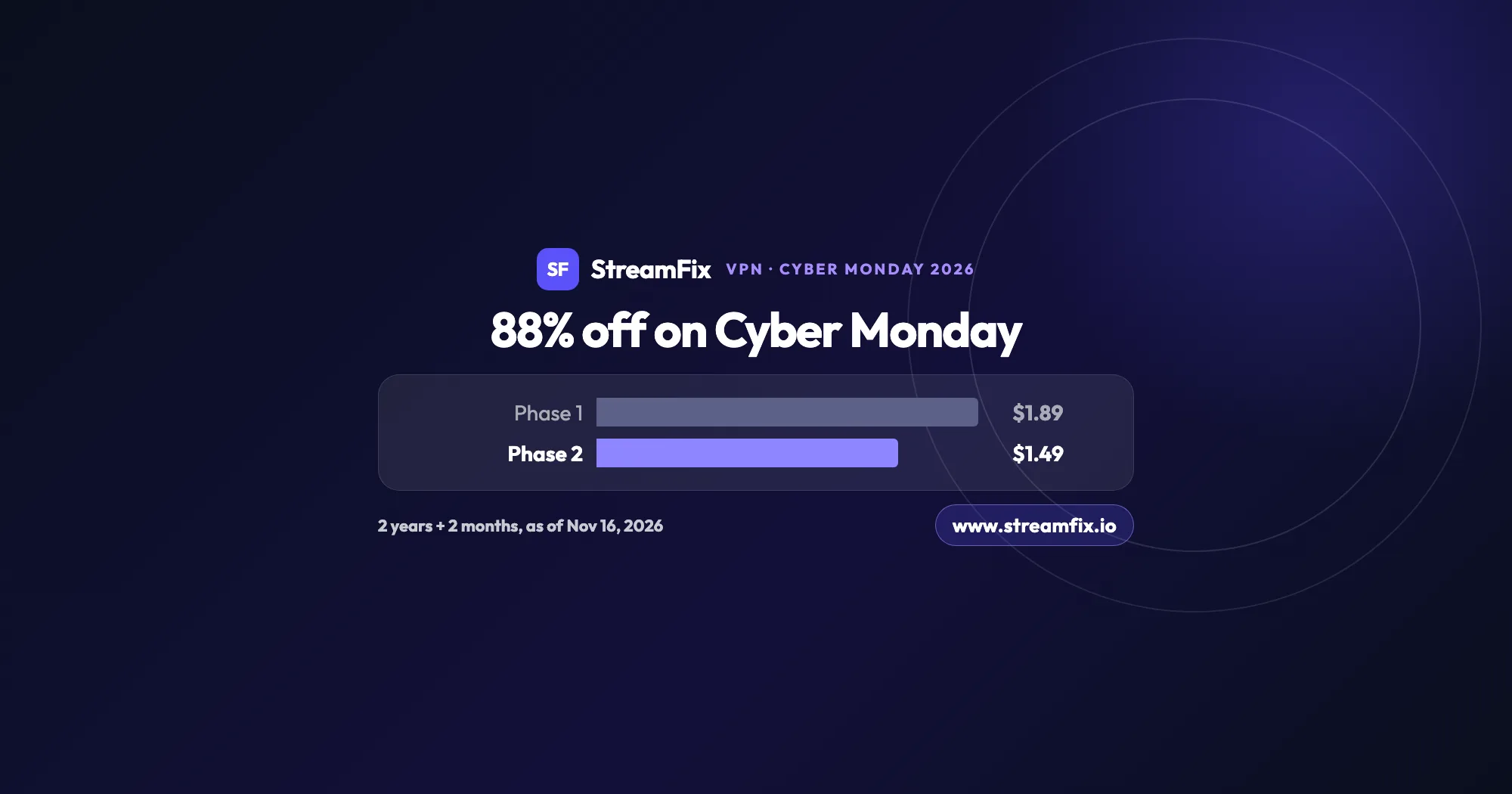
On Cyber Monday, November 30, 2026, Private Internet Access (PIA) costs $1.49 a month, 88% off, on the 2-year plan with 2 extra months. Phase 2 of the sale runs from November 25 to December 2, and one plan covers unlimited devices for your whole household.