Surfshark Not Working? Fixes When It Won’t Connect, Slows Down or Drops
Surfshark not working? Switch servers, change the protocol and update the app: those three steps fix most problems in about a minute. Below you’ll find a quick fix for every symptom, from “Connecting” to slow speeds and dropped connections.
Petr VenclikFounder & Lead Analyst 9 min read Affiliate linksSome links are affiliate links. We may earn a commission at no extra cost to you, and it never affects our ratings.
Most problems clear up with three steps in about a minute: a different server, a different protocol and an app update.
According to Surfshark, a speed drop of 20 to 30% is normal with a VPN.
TV lost its internet? Remove the old Smart DNS setting, since the feature ended on February 2, 2026.
Live chat support runs 24/7, and a first purchase on Surfshark’s website comes with a 30-day money-back guarantee.
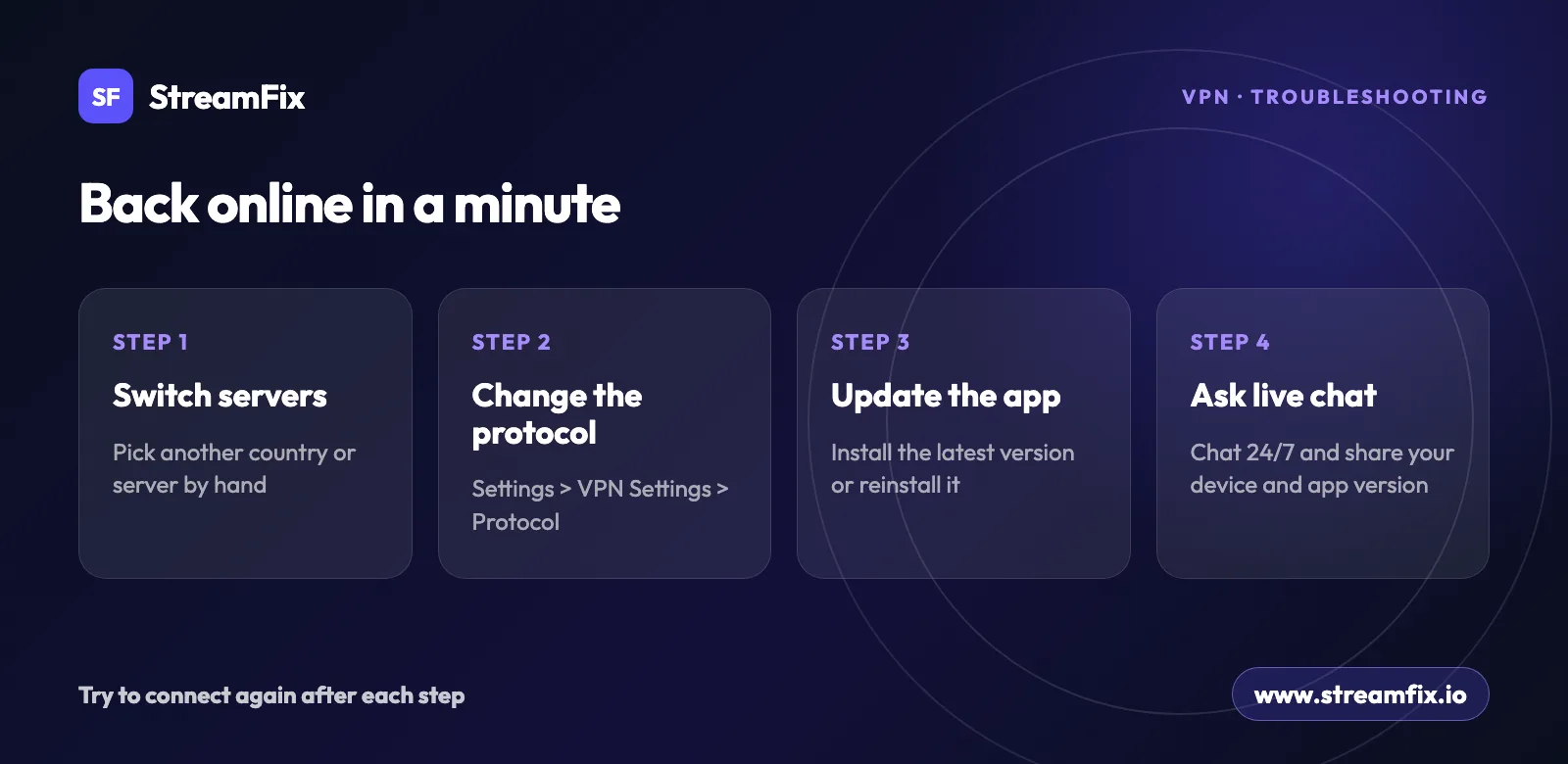
Most cases of Surfshark not working come down to the server, the protocol or an outdated app, and three quick steps fix them in about a minute:
Switch servers. Connect by hand to a different country or server. If you used Quick connect, pick the country yourself.
Change the protocol. Go to Settings > VPN Settings > Protocol and try WireGuard, OpenVPN (UDP) and OpenVPN (TCP).
Update the app. Install the latest version, or reinstall the app if it’s already current.
Try to connect again after each step. Still stuck? The checklist and the symptom guide below cover everything else. For the bigger picture on apps, features and streaming, read our Surfshark review.
Surfshark not working? A two-minute checklist
Run through these before you dig deeper. Each one takes seconds.
Your internet works with the VPN turned off.
The Surfshark app is on the latest version.
Any other VPN app is turned off or uninstalled.
Surfshark is on your antivirus exception list.
IPv6 is turned off (on an iPhone, only through your router or internet provider).
You’ve tried another network, such as mobile data or a phone hotspot.
You’ve restarted the device: turn it off, wait about 30 seconds, then turn it back on.
If you’ve checked every box and the problem is still there, find your symptom below. Each one has its own quick fix.
Symptom, likely cause and one-minute fix
Match what you see to a row and start with the fix in the last column.
Symptom
Most likely cause
One-minute fix
Stuck on “Connecting”
Server or protocol
Other country, other protocol
Connected, no internet
Protocol, antivirus, IPv6
New protocol, antivirus exception
TV has no internet
Old Smart DNS setting
Set DNS to automatic
Slow speeds
Distant or busy server
Closer server, other protocol
Connection keeps dropping
Server maintenance, other app
Other server, restart
Service detects a VPN
Blocked IP address
New server, same country
Website won’t load
CleanWeb
Turn CleanWeb off briefly
Source: Surfshark Help Center, November 9, 2026
Nearly every fix is a switch inside the app, so you rarely need more than a minute. If a website won’t load, CleanWeb may be blocking a page that looks harmful: turn it off in the Features tab for a quick test, then back on. If you’re still deciding, Surfshark comes with a 30-day money-back guarantee and unlimited devices on one account, so you can set it up on every phone, laptop and TV at home and see how it runs.
Each fix below starts with the symptom as it shows up on your screen, followed by the quickest way out.
Stuck on “Connecting” or “Connection failed”
The app hangs on “Connecting,” or shows “Connection failed” or “Unable to connect.” Connect by hand to a different country first: if Detroit fails, try Berlin.
Compare Quick connect with a server you pick yourself. If one works and the other doesn’t, the issue is the server, not the app.
Change the protocol in Settings > VPN Settings > Protocol and try each one.
Add Surfshark to your antivirus exceptions and uninstall other VPN apps.
Update or reinstall the app. On Android, if you installed the .APK from the website, try the Google Play version, and the other way around.
Turn off IPv6. On Android and iOS, you can also set a custom DNS.
VPN Settings > Protocol, update or reinstall the app, then ask the 24/7 live chat.” width=”1600” height=”780”>
Once you’re connected, stick with the protocol that worked. You can switch back any time.
Connected but no internet
The app says you’re connected, but nothing loads. Switch to another location first, because the server may be having issues or be overloaded.
Next, try a different protocol, since some networks and providers block certain protocols. Add Surfshark to your antivirus exceptions, turn off other VPNs and system-wide ad blockers, turn off IPv6, update the app and restart the device.
If the internet cut out right when the VPN dropped, that’s the Kill Switch doing its job. It blocks your connection on purpose until you reconnect to a Surfshark server, so nothing leaves your device unprotected. Just reconnect. You can turn it on or off in Settings > VPN settings.
TV has no internet after Smart DNS ended
Your smart TV suddenly has no internet at all. If you once set up Surfshark Smart DNS on it, that old setting is the cause: Surfshark ended the Smart DNS feature on February 2, 2026, and the setting has to be removed by hand. Set the DNS back to automatic:
Samsung: Settings > General > Network Status > IP settings > DNS settings.
LG: Settings > All settings > Network > your network > Advanced Wi-Fi Settings or Edit > DNS.
You can also enter Surfshark’s public DNS, 194.169.169.169, by hand. A public DNS doesn’t change your location, though. To stream on a TV, use the Surfshark app for Android TV or Apple TV (tvOS), a router or a hotspot from a Windows PC. Our guide to setting up a VPN on a smart TV walks through each option.
Surfshark is slow
Pages load, but videos buffer and downloads crawl. Connect to a server close to where you actually are, even if you picked the fastest server before.
According to Surfshark, a drop of 20 to 30% is normal with a VPN, because your data is encrypted and routed through a server. Distance to the server, the number of people on it, the protocol and your real internet speed all play a part. Surfshark has no speed or data limits.
On Windows, set the protocol to WireGuard.
On Android and iPhone, try OpenVPN (UDP), then WireGuard.
On Android, turn on “small packets” and turn off battery saver. On iPhone, turn off Low Power Mode.
Pause your antivirus for a quick test (then turn it back on), close P2P clients and other VPNs, and restart.
Compare Wi-Fi with mobile data.
There’s plenty of headroom. According to StreamFix data, Surfshark reached 921 Mbps on a local server and 733 Mbps on a remote one on another continent, with 14 ms latency. Our review has the full Surfshark speed results, and the methodology page explains how StreamFix measures speed.
Surfshark connects, then drops after a while. Try every protocol, then a different server, since the current one may be under maintenance.
Make sure your antivirus isn’t blocking the app, and close other VPN apps.
Switch to another network or a hotspot from your phone.
Reinstall the app.
Restart the device. Kill Switch or leak protection can get stuck, and a restart clears it.
In your router, turn off parental controls or your provider’s “Safe DNS.”
Turn off IPv6.
Streaming service says you’re using a VPN
The service shows a VPN message, or the video won’t load. Get a new IP address: close the app or browser completely, connect to another city or server in the same country, then open the service again.
Streaming services block individual IP addresses, so a fresh connection usually does it. If not, try these:
Run the DNS leak test on Surfshark’s website and check that the app shows “Connected and safe.”
Clear the cache. On an iPhone, reinstall the streaming app instead.
On a phone, turn off location (GPS).
Open a private window, or use the browser instead of the app.
The TV app won’t connect or keeps spinning. On Fire TV, switch the protocol to OpenVPN (TCP) first, then try the others.
Still nothing? Open Settings, scroll to the very bottom and choose “Send diagnostics,” which helps the developers find the cause. Then reinstall the app from the Amazon Appstore, following our Surfshark guide for Firestick and smart TVs if you need the steps.
On Android TV, update or reinstall the app, try every option in Settings > Protocol, switch servers, turn off other VPNs and restart the TV. Setting up from scratch? Here’s how to install a VPN on a Firestick.
Three things about VPN connections that may surprise you
IPv6 can get in the way. Surfshark doesn’t use IPv6 yet, and its help center notes that having IPv6 turned on can interfere with the connection. That’s why it recommends turning IPv6 off. On an iPhone, you can’t do that in the phone itself, only in your router or through your internet provider.
A VPN can even speed things up. Your data travels encrypted to the server and back, which is why a drop of 20 to 30% is normal. But if your internet provider throttles your speed, for example while you stream, a VPN can actually speed your connection up.
A new IP is often all you need. Streaming services block individual IP addresses, so reconnecting in the same country often clears a VPN message. In the Windows app, the Refresh button (still in beta, WireGuard only) does this for you: it moves you to another server in the same country. Next to each location, a color-coded Performance Indicator (also in beta) shows server quality, with green the best, yellow average and red weaker.
When a server feels slow or blocked, switching takes a few seconds, and you can do it as often as you need.
If none of the fixes above work, reach out to support. Live chat runs 24/7 and is the fastest option, and email works too. Include these details so the agent can help in the first reply:
A short description of the problem.
Your device and system, such as Windows 11 or iOS.
Most connection problems take a minute to fix: a new server, a new protocol or an app update. Surfshark has 4,500+ servers in 100 countries, one account covers unlimited devices, and the 30-day money-back guarantee gives you a full month to see how it runs on your own setup.
Usually it’s the server, the protocol or an older app version, and all three are quick to fix. Connect to a different country by hand, change the protocol in Settings > VPN Settings > Protocol and update the app. Those steps sort out most cases in about a minute.
The most common reasons are a busy server, a protocol your network blocks, an antivirus or another VPN app in the way, or IPv6. Try a different country, switch protocols, add Surfshark to your antivirus exceptions and turn off IPv6. If the app still hangs on “Connecting,” live chat support is there 24/7.
According to Surfshark, a drop of 20 to 30% is normal with a VPN, because your data is encrypted and sent through a server. Pick a server close to you, and use WireGuard on Windows or OpenVPN (UDP), then WireGuard, on a phone. Distant or crowded servers slow things down the most.
The server may be overloaded, or your network may block the protocol. Switch locations, change the protocol, and check your antivirus and IPv6. If the internet cut out when the VPN dropped, the Kill Switch is keeping you protected until you reconnect.
Often the server is under maintenance, or another app interferes. Try every protocol, switch servers, change networks and restart the device, which also clears a stuck Kill Switch. Turning off parental controls or “Safe DNS” in your router helps too.
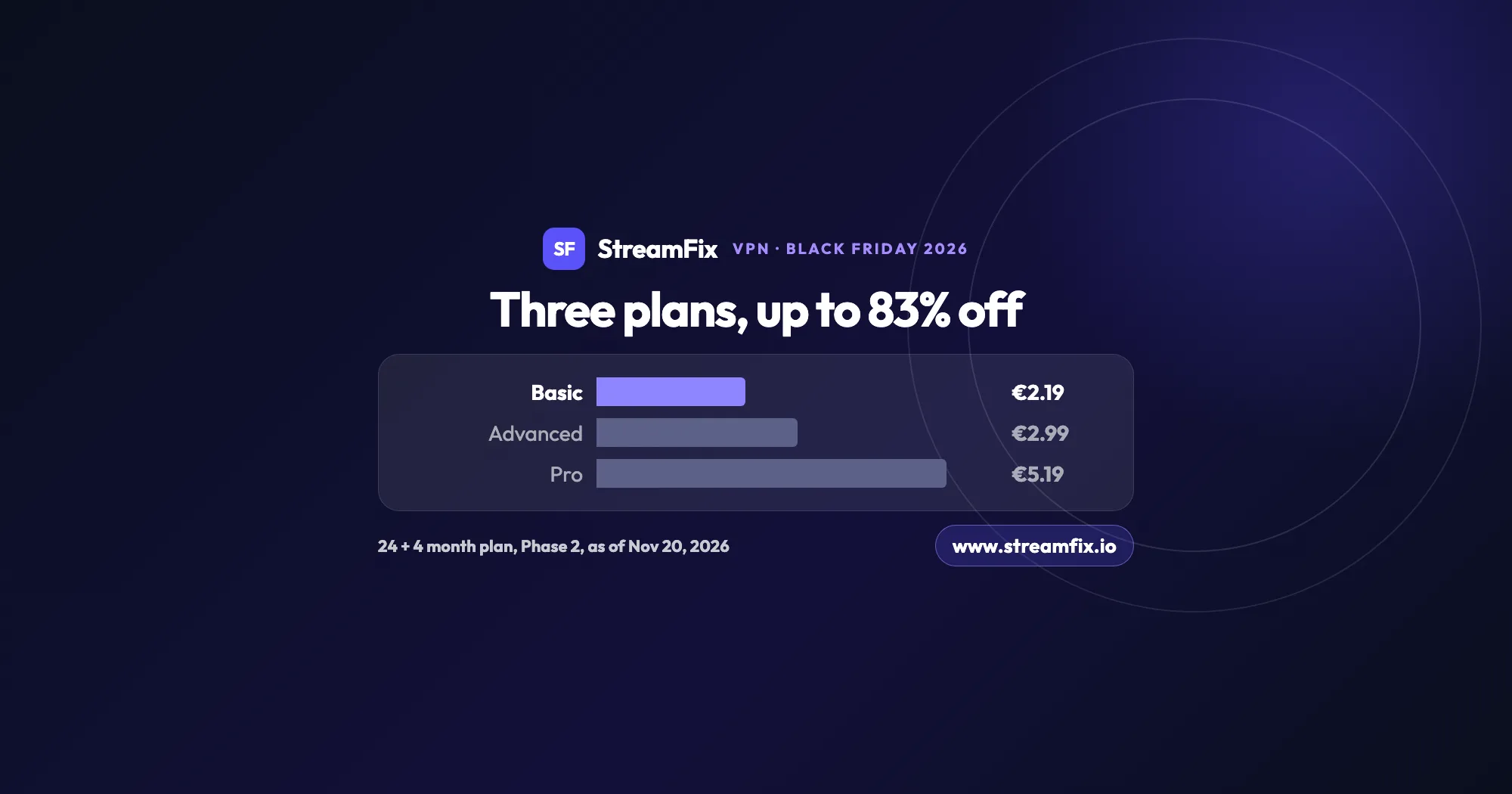
The ExpressVPN Black Friday deal runs in two phases, and on Black Friday itself Basic costs €2.19 a month, 83% off. All three plans share the same VPN, so the choice comes down to devices and extras.
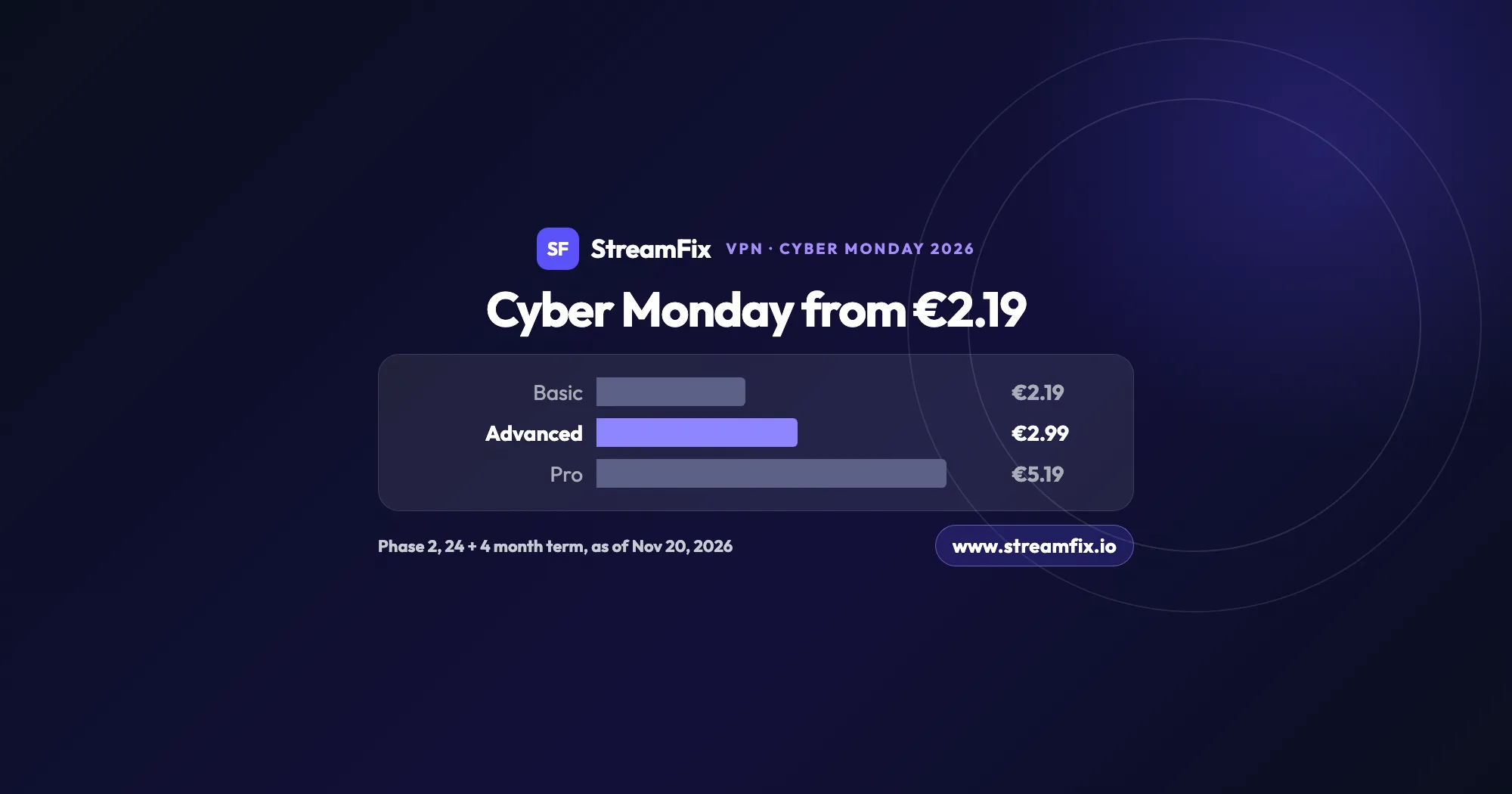
On Cyber Monday, November 30, 2026, Phase 2 of the ExpressVPN Black Friday sale applies: Basic €2.19, Advanced €2.99 and Pro €5.19 a month on the 24 + 4 month term. One subscription covers 10, 12 or 14 devices.
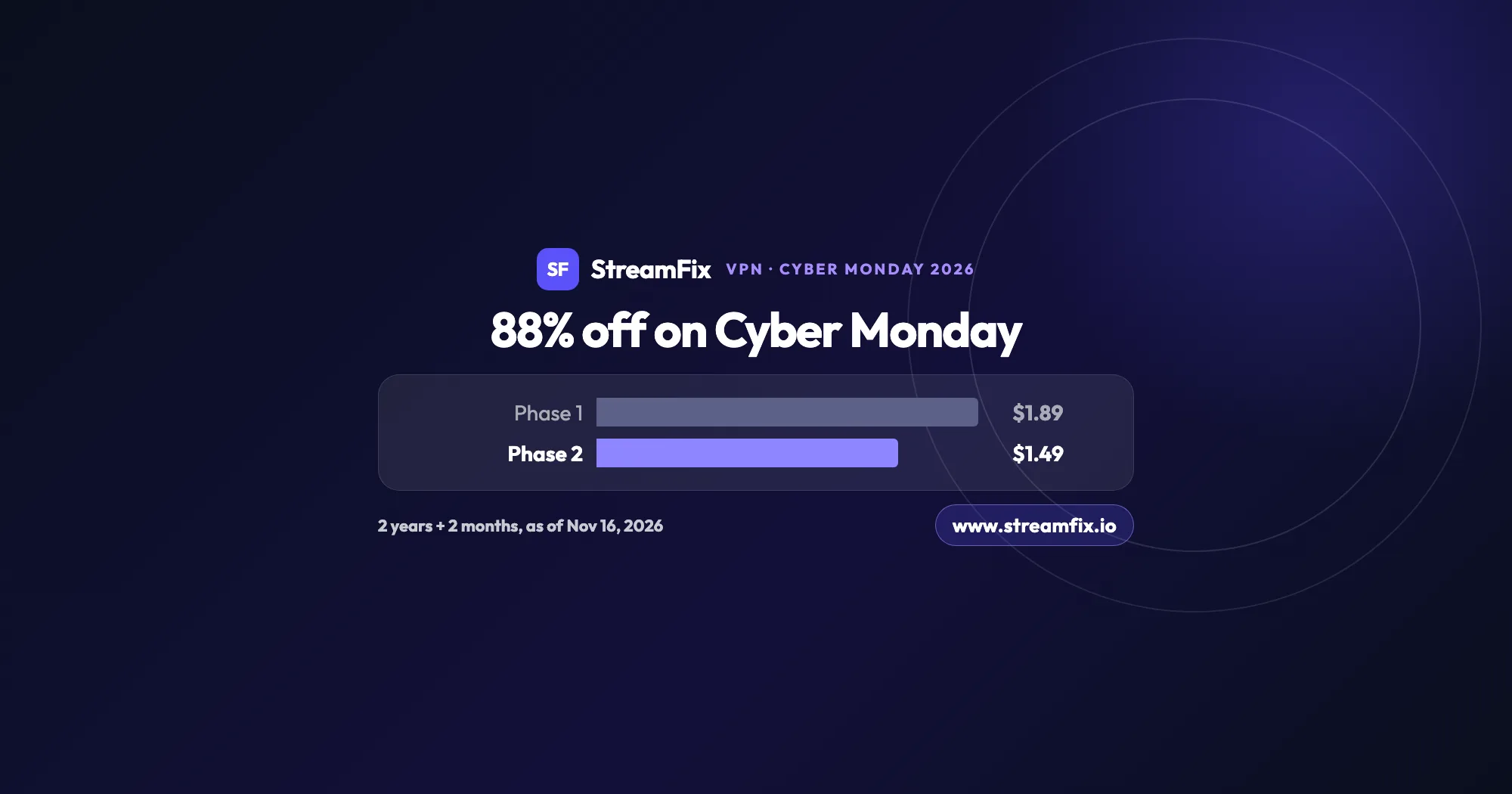
On Cyber Monday, November 30, 2026, Private Internet Access (PIA) costs $1.49 a month, 88% off, on the 2-year plan with 2 extra months. Phase 2 of the sale runs from November 25 to December 2, and one plan covers unlimited devices for your whole household.







 VPN Settings > Protocol, update or reinstall the app, then ask the 24/7 live chat.” width=”1600” height=”780”>